2024年6月30日 星期日

Batch Script - Input / Output


There are three universal “files” for keyboard input, printing text on the screen and printing errors on the screen. The “Standard In” file, known as stdin, contains the input to the program/script. The “Standard Out” file, known as stdout, is used to write output for display on the screen. Finally, the “Standard Err” file, known as stderr, contains any error messages for display on the screen.

Each of these three standard files, otherwise known as the standard streams, are referenced using the numbers 0, 1, and 2. Stdin is file 0, stdout is file 1, and stderr is file 2.

Redirecting Output (Stdout and Stderr)

One common practice in batch files is sending the output of a program to a log file. The > operator sends, or redirects, stdout or stderr to another file. The following example shows how this can be done.

Dir C:\ > list.txt

In the above example, the stdout of the command Dir C:\ is redirected to the file list.txt.

If you append the number 2 to the redirection filter, then it would redirect the stderr to the file lists.txt.

Dir C:\ 2> list.txt

One can even combine the stdout and stderr streams using the file number and the ‘&’ prefix. Following is an example.

DIR C:\ > lists.txt 2>&1

Suppressing Program Output

The pseudo file NUL is used to discard any output from a program. The following example shows that the output of the command DIR is discarded by sending the output to NUL.

Dir C:\ > NUL

Stdin

To work with the Stdin, you have to use a workaround to achieve this. This can be done by redirecting the command prompt’s own stdin, called CON.

The following example shows how you can redirect the output to a file called lists.txt. After you execute the below command, the command prompt will take all the input entered by user till it gets an EOF character. Later, it sends all the input to the file lists.txt.

TYPE CON > lists.txt

Batch Script - DATE and TIME


The date and time in DOS Scripting have the following two basic commands for retrieving the date and time of the system.

DATE

This command gets the system date.

Syntax

DATE

Example

@echo off 
echo %DATE%

Output

The current date will be displayed in the command prompt. For example,

Mon 12/28/2015

TIME

This command sets or displays the time.

Syntax

TIME

Example

@echo off 
echo %TIME%

Output

The current system time will be displayed. For example,

22:06:52.87

Following are some implementations which can be used to get the date and time in different formats.

Date in Format Year-Month-Day

Example

@echo off 
echo/Today is: %year%-%month%-%day% 
goto :EOF 
setlocal ENABLEEXTENSIONS 
set t = 2&if "%date%z" LSS "A" set t = 1 

for /f "skip=1 tokens = 2-4 delims = (-)" %%a in ('echo/^|date') do ( 
   for /f "tokens = %t%-4 delims=.-/ " %%d in ('date/t') do ( 
      set %%a=%%d&set %%b=%%e&set %%c=%%f)) 
endlocal&set %1=%yy%&set %2=%mm%&set %3=%dd%&goto :EOF

Output

The above command produces the following output.

Today is: 2015-12-30

Batch Script - Operators


An operator is a symbol that tells the compiler to perform specific mathematical or logical manipulations.

In batch script, the following types of operators are possible.

  • Arithmetic operators
  • Relational operators
  • Logical operators
  • Assignment operators
  • Bitwise operators

Arithmetic Operators

Batch script language supports the normal Arithmetic operators as any language. Following are the Arithmetic operators available.

Show Example

Operator Description Example
+ Addition of two operands 1 + 2 will give 3
− Subtracts second operand from the first 2 − 1 will give 1
* Multiplication of both operands 2 * 2 will give 4
/ Division of the numerator by the denominator 3 / 2 will give 1.5
% Modulus operator and remainder of after an integer/float division 3 % 2 will give 1
Advertisement

Relational Operators

Relational operators allow of the comparison of objects. Below are the relational operators available.

Show Example

Operator Description Example
EQU Tests the equality between two objects 2 EQU 2 will give true
NEQ Tests the difference between two objects 3 NEQ 2 will give true
LSS Checks to see if the left object is less than the right operand 2 LSS 3 will give true
LEQ Checks to see if the left object is less than or equal to the right operand 2 LEQ 3 will give true
GTR Checks to see if the left object is greater than the right operand 3 GTR 2 will give true
GEQ Checks to see if the left object is greater than or equal to the right operand 3 GEQ 2 will give true

Logical Operators

Logical operators are used to evaluate Boolean expressions. Following are the logical operators available.

The batch language is equipped with a full set of Boolean logic operators like AND, OR, XOR, but only for binary numbers. Neither are there any values for TRUE or FALSE. The only logical operator available for conditions is the NOT operator.

Show Example

Operator Description
AND This is the logical “and” operator
OR This is the logical “or” operator
NOT This is the logical “not” operator

Assignment Operators

Batch Script language also provides assignment operators. Following are the assignment operators available.

Show Example

Operator Description Example
+= This adds right operand to the left operand and assigns the result to left operand

Set /A a = 5

a += 3

Output will be 8

-= This subtracts the right operand from the left operand and assigns the result to the left operand

Set /A a = 5

a -= 3

Output will be 2

*= This multiplies the right operand with the left operand and assigns the result to the left operand

Set /A a = 5

a *= 3

Output will be 15

/= This divides the left operand with the right operand and assigns the result to the left operand

Set /A a = 6

a/ = 3

Output will be 2

%= This takes modulus using two operands and assigns the result to the left operand

Set /A a = 5

a% = 3

Output will be 2

Bitwise Operators

Bitwise operators are also possible in batch script. Following are the operators available.

Show Example

Operator Description
& This is the bitwise “and” operator
| This is the bitwise “or” operator
^ This is the bitwise “xor” or Exclusive or operator

Following is the truth table showcasing these operators.

p q p & q p | q p ^ q
0 0 0 0 0
0 1 0 1 1
1 1 1 1 0
1 0 0 1 1

Batch Script - Decision Making

 If Statement

The first decision-making statement is the ‘if’ statement. The general form of this statement in Batch Script is as follows −

if(condition) do_something

The general working of this statement is that first a condition is evaluated in the ‘if’ statement. If the condition is true, it then executes the statements. The following diagram shows the flow of the if statement.
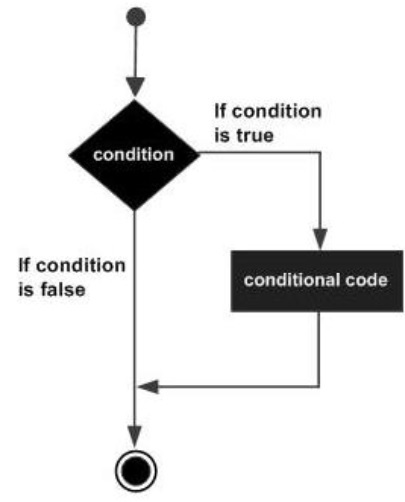
If Statement

Checking Variables

One of the common uses for the ‘if’ statement in Batch Script is for checking variables which are set in Batch Script itself. The evaluation of the ‘if’ statement can be done for both strings and numbers.

Checking Integer Variables

The following example shows how the ‘if’ statement can be used for numbers.

Example

@echo off 
SET /A a = 5 
SET /A b = 10 
SET /A c = %a% + %b% 
if %c%==15 echo "The value of variable c is 15" 
if %c%==10 echo "The value of variable c is 10"

The key thing to note about the above program is −

  • The first ‘if’ statement checks if the value of the variable c is 15. If so, then it echo’s a string to the command prompt.

  • Since the condition in the statement - if %c% == 10 echo "The value of variable c is 10 evaluates to false, the echo part of the statement will not be executed.

Output

The above command produces the following output.

15

Checking String Variables

The following example shows how the ‘if’ statement can be used for strings.

Example

@echo off 
SET str1 = String1 
SET str2 = String2 
if %str1%==String1 echo "The value of variable String1" 
if %str2%==String3 echo "The value of variable c is String3"

The key thing to note about the above program is −

  • The first ‘if’ statement checks if the value of the variable str1 contains the string “String1”. If so, then it echo’s a string to the command prompt.

  • Since the condition of the second ‘if’ statement evaluates to false, the echo part of the statement will not be executed.

Output

The above command produces the following output.

"The value of variable String1"

Note − One key thing to note is that the evaluation in the ‘if’ statement is "case-sensitive”. The same program as above is modified a little as shown in the following example. In the first statement, we have changed the comparison criteria. Because of the different casing, the output of the following program would yield nothing.

@echo off 
SET str1 = String1 
SET str2 = String2 
if %str1%==StrinG1 echo "The value of variable String1" 
if %str2%==String3 echo "The value of variable c is String3"

Checking Command Line Arguments

Another common use of the ‘if’ statement is used to check for the values of the command line arguments which are passed to the batch files. The following example shows how the ‘if’ statement can be used to check for the values of the command line arguments.

Example

@echo off 
echo %1 
echo %2 
echo %3 
if %1%==1 echo "The value is 1" 
if %2%==2 echo "The value is 2" 
if %3%==3 echo "The value is 3"

The key thing to note about the above program is −

  • The above program assumes that 3 command line arguments will be passed when the batch script is executed.

  • A comparison is done for each command line argument against a value. If the criteria passes then a string is sent as the output.

Output

If the above code is saved in a file called test.bat and the program is executed as

test.bat 1 2 3

Following will be the output of the above program.

1 
2 
3 
"The value is 1" 
"The value is 2" 
"The value is 3"


If/else Statement 

The next decision making statement is the If/else statement. Following is the general form of this statement.

If (condition) (do_something) ELSE (do_something_else)

The general working of this statement is that first a condition is evaluated in the ‘if’ statement. If the condition is true, it then executes the statements thereafter and stops before the else condition and exits out of the loop. If the condition is false, it then executes the statements in the else statement block and then exits the loop. The following diagram shows the flow of the ‘if’ statement.
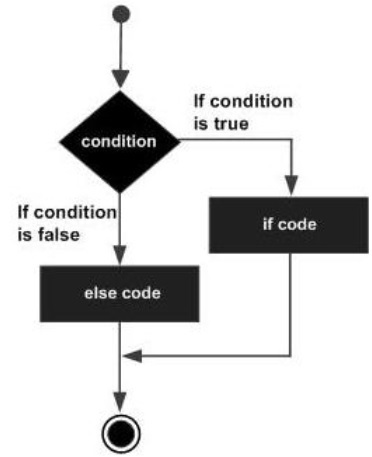
If/else Statement

Checking Variables

Just like the ‘if’ statement in Batch Script, the if-else can also be used for checking variables which are set in Batch Script itself. The evaluation of the ‘if’ statement can be done for both strings and numbers.

Checking Integer Variables

The following example shows how the ‘if’ statement can be used for numbers.

Example

@echo off SET /A a = 5 SET /A b = 10 SET /A c = %a% + %b% if %c%==15 (echo "The value of variable c is 15") else (echo "Unknown value") if %c%==10 (echo "The value of variable c is 10") else (echo "Unknown value")

The key thing to note about the above program is −

  • Each ‘if else’ code is placed in the brackets (). If the brackets are not placed to separate the code for the ‘if and else’ code, then the statements would not be valid proper if else statements.

  • In the first ‘if else’ statement, the if condition would evaluate to true.

  • In the second ‘if else’ statement, the else condition will be executed since the criteria would be evaluated to false.

Output

The above command produces the following output.

"The value of variable c is 15" "Unknown value"

Checking String Variables

The same example can be repeated for strings. The following example shows how the ‘if else’ statement can be used to strings.

Example

@echo off SET str1 = String1 SET str2 = String2 if %str1%==String1 (echo "The value of variable String1") else (echo "Unknown value") if %str2%==String3 (echo "The value of variable c is String3") else (echo "Unknown value")

The key thing to note about the above program is −

  • The first ‘if’ statement checks if the value of the variable str1 contains the string “String1”. If so, then it echo’s a string to the command prompt.

  • Since the condition of the second ‘if’ statement evaluates to false, the echo part of the statement will not be executed.

Output

The above command produces the following output.

"The value of variable String1" "Unknown value"

Checking Command Line Arguments

The ‘if else’ statement can also be used for checking of command line arguments. The following example show how the ‘if’ statement can be used to check for the values of the command line arguments.

Example

@echo off echo %1 echo %2 echo %3 if %1%==1 (echo "The value is 1") else (echo "Unknown value") if %2%==2 (echo "The value is 2") else (echo "Unknown value") if %3%==3 (echo "The value is 3") else (echo "Unknown value")

Output

If the above code is saved in a file called test.bat and the program is executed as

test.bat 1 2 4

Following will be the output of the above program.

1 2 4 "The value is 1" "The value is 2" "Unknown value"

if defined

A special case for the ‘if’ statement is the "if defined", which is used to test for the existence of a variable. Following is the general syntax of the statement.

if defined somevariable somecommand

Following is an example of how the ‘if defined’ statement can be used.

Example

@echo off SET str1 = String1 SET str2 = String2 if defined str1 echo "Variable str1 is defined" if defined str3 (echo "Variable str3 is defined") else (echo "Variable str3 is not defined")

Output

The above command produces the following output.

"Variable str1 is defined" "Variable str3 is not defined"

if exists

Another special case for the ‘if’ statement is the "if exists ", which is used to test for the existence of a file. Following is the general syntax of the statement.

If exist somefile.ext do_something

Following is an example of how the ‘if exists’ statement can be used.

Example

@echo off if exist C:\set2.txt echo "File exists" if exist C:\set3.txt (echo "File exists") else (echo "File does not exist")

Output

Let’s assume that there is a file called set2.txt in the C drive and that there is no file called set3.txt. Then, following will be the output of the above code.

"File exists" "File does not exist"


Nested If Statements 

Sometimes, there is a requirement to have multiple ‘if’ statement embedded inside each other. Following is the general form of this statement.

if(condition1) if (condition2) do_something

So only if condition1 and condition2 are met, will the code in the do_something block be executed.

Following is an example of how the nested if statements can be used.

Example

@echo off SET /A a = 5 SET /A b = 10 if %a%==5 if %b%==10 echo "The value of the variables are correct"

Output

The above command produces the following output.

"The value of the variables are correct"

If errorlevel

Yet another special case is "if errorlevel", which is used to test the exit codes of the last command that was run. Various commands issue integer exit codes to denote the status of the command. Generally, commands pass 0 if the command was completed successfully and 1 if the command failed.

Following is the general syntax of this statement.

if errorlevel n somecommand

where "n" is one of the integer exit codes.

Goto Statement

Generally, the execution of a batch file proceeds line-by-line with the command(s) on each line being run in turn. However, it is often desirable to execute a particular section of a batch file while skipping over other parts. The capability to hop to a particular section is provided by the appropriately named "goto" command (written as one word). The target section is labeled with a line at the beginning that has a name with a leading colon. Thus the script looks like −

... goto :label ...some commands :label ...some other commands

Execution will skip over "some commands" and start with "some other commands". The label can be a line anywhere in the script, including before the "goto" command. "Goto" commands often occur in "if" statements. For example, you might have a command of the type −

if (condition) goto :label

Following is an example of how the goto statement can be used.

Example

@echo off SET /A a = 5 if %a%==5 goto :labela if %a%==10 goto :labelb :labela echo "The value of a is 5" exit /b 0 :labelb echo "The value of a is 10"

The key thing to note about the above program is −

  • The code statements for the label should be on the next line after the declaration of the label.

  • You can define multiple goto statements and their corresponding labels in a batch file.

  • The label declarations can be anywhere in the file.

Output

The above command produces the following output.

"The value of a is 5"
 

Batch Script - Arrays


Arrays are not specifically defined as a type in Batch Script but can be implemented. The following things need to be noted when arrays are implemented in Batch Script.

  • Each element of the array needs to be defined with the set command.
  • The ‘for’ loop would be required to iterate through the values of the array.

Creating an Array

An array is created by using the following set command.

set a[0]=1

Where 0 is the index of the array and 1 is the value assigned to the first element of the array.

Another way to implement arrays is to define a list of values and iterate through the list of values. The following example show how this can be implemented.

Example

@echo off 
set list=1 2 3 4 
(for %%a in (%list%) do ( 
   echo %%a 
))

Output

The above command produces the following output.

1
2
3
4

Accessing Arrays

You can retrieve a value from the array by using subscript syntax, passing the index of the value you want to retrieve within square brackets immediately after the name of the array.

Example

@echo off 
set a[0]=1 
echo %a[0]%

In this example, the index starts from 0 which means the first element can be accessed using index as 0, the second element can be accessed using index as 1 and so on. Let's check the following example to create, initialize and access arrays −

@echo off
set a[0]=1 
set a[1]=2 
set a[2]=3 
echo The first element of the array is %a[0]% 
echo The second element of the array is %a[1]% 
echo The third element of the array is %a[2]%

The above command produces the following output.

The first element of the array is 1 
The second element of the array is 2 
The third element of the array is 3

Modifying an Array

To add an element to the end of the array, you can use the set element along with the last index of the array element.

Example

@echo off 
set a[0]=1  
set a[1]=2  
set a[2]=3 
Rem Adding an element at the end of an array 
Set a[3]=4 
echo The last element of the array is %a[3]%

The above command produces the following output.

The last element of the array is 4

You can modify an existing element of an Array by assigning a new value at a given index as shown in the following example −

@echo off 
set a[0]=1 
set a[1]=2  
set a[2]=3 
Rem Setting the new value for the second element of the array 
Set a[1]=5 
echo The new value of the second element of the array is %a[1]%

The above command produces the following output.

The new value of the second element of the array is 5

Iterating Over an Array

Iterating over an array is achieved by using the ‘for’ loop and going through each element of the array. The following example shows a simple way that an array can be implemented.

@echo off 
setlocal enabledelayedexpansion 
set topic[0]=comments 
set topic[1]=variables 
set topic[2]=Arrays 
set topic[3]=Decision making 
set topic[4]=Time and date 
set topic[5]=Operators 

for /l %%n in (0,1,5) do ( 
   echo !topic[%%n]! 
)

Following things need to be noted about the above program −

  • Each element of the array needs to be specifically defined using the set command.

  • The ‘for’ loop with the /L parameter for moving through ranges is used to iterate through the array.

Output

The above command produces the following output.

Comments 
variables 
Arrays 
Decision making 
Time and date 
Operators

Length of an Array

The length of an array is done by iterating over the list of values in the array since there is no direct function to determine the number of elements in an array.

@echo off 
set Arr[0]=1 
set Arr[1]=2 
set Arr[2]=3 
set Arr[3]=4 
set "x = 0" 
:SymLoop 

if defined Arr[%x%] ( 
   call echo %%Arr[%x%]%% 
   set /a "x+=1"
   GOTO :SymLoop 
)
echo "The length of the array is" %x%

Output

Output The above command produces the following output.

1
2
3
4
"The length of the array is" 4

Creating Structures in Arrays

Structures can also be implemented in batch files using a little bit of an extra coding for implementation. The following example shows how this can be achieved.

Example

@echo off 
set obj[0].Name=Joe 
set obj[0].ID=1 
set obj[1].Name=Mark 
set obj[1].ID=2 
set obj[2].Name=Mohan 
set obj[2].ID=3 
FOR /L %%i IN (0 1 2) DO  (
   call echo Name = %%obj[%%i].Name%%
   call echo Value = %%obj[%%i].ID%%
)

The following key things need to be noted about the above code.

  • Each variable defined using the set command has 2 values associated with each index of the array.

  • The variable i is set to 0 so that we can loop through the structure will the length of the array which is 3.

  • We always check for the condition on whether the value of i is equal to the value of len and if not, we loop through the code.

  • We are able to access each element of the structure using the obj[%i%] notation.

Output

The above command produces the following output.

Name=Joe 
Value=1 
Name=Mark 
Value=2 
Name=Mohan 
Value=3

Batch Script - Strings


Example

@echo off 
:: This program just displays Hello World 
set message = Hello World 
echo %message%

Output

The above command produces the following output.

Hello World 


An empty string can be created in DOS Scripting by assigning it no value during it’s initialization as shown in the following example.

Set a=

To check for an existence of an empty string, you need to encompass the variable name in square brackets and also compare it against a value in square brackets as shown in the following example.

[%a%]==[]

The following example shows how an empty string can be created and how to check for the existence of an empty string.

Example

@echo off 
SET a= 
SET b=Hello 
if [%a%]==[] echo "String A is empty" 
if [%b%]==[] echo "String B is empty "
 

Output

The above command produces the following output.

String A is empty 


String interpolation is a way to construct a new String value from a mix of constants, variables, literals, and expressions by including their values inside a string literal.

In DOS scripting, the string interpolation can be done using the set command and lining up the numeric defined variables or any other literals in one line when using the set command.

The following example shows how a string interpolation can be done with numeric values as well.

Example

@echo off 
SET a = Hello 
SET b = World 
SET /A d = 50 
SET c=%a% and %b% %d%
echo %c%
 

Output

The above command produces the following output.

Hello and World 50 


You can use the set operator to concatenate two strings or a string and a character, or two characters. Following is a simple example which shows how to use string concatenation.

Example

@echo off 
SET a = Hello 
SET b = World 
SET c=%a% and %b% 
echo %c%

Output

The above command produces the following output.

Hello and World 


In DOS scripting, there is no length function defined for finding the length of a string. There are custom-defined functions which can be used for the same. Following is an example of a custom-defined function for seeing the length of a string.

Example

@echo off set str = Hello World call :strLen str strlen echo String is %strlen% characters long exit /b :strLen setlocal enabledelayedexpansion :strLen_Loop if not "!%1:~%len%!"=="" set /A len+=1 & goto :strLen_Loop (endlocal & set %2=%len%) goto :eof

A few key things to keep in mind about the above program are −

  • The actual code which finds the length of string is defined in the :strLen block.

  • The length of the string is maintained in the variable len.


    Output

    The above command produces the following output.

    11 


    Example

    @echo off set var = 13145 set /A var=%var% + 5 echo %var%

    Output

    The above command produces the following output.

    13150

    Apart from this, strings have the following implementations which are available. Batch scripts have the following commands which are used to carry out string manipulation in strings.

    %variable:~num_chars_to_skip% %variable:~num_chars_to_skip,num_chars_to_keep%

    This can include negative numbers −

    %variable:~num_chars_to_skip, -num_chars_to_keep% %variable:~-num_chars_to_skip,num_chars_to_keep% %variable:~-num_chars_to_skip,-num_chars_to_keep%

    Let us discuss the possible string operations that can be performed by using the above commands.


    Example

    @echo off 
    set x = 1000 
    set y = 1 
    set y = %y% 
    echo %x% 
    
    set y = %y:~-4% 
    echo %y%

    A few key things to note about the above program is −

  • Spaces are added to the variable of y, in this case we are adding 9 spaces to the variable of y.

  • We are using the ~-4 option to say that we just want to show the last 4 characters of the string y.


    Output

    The above command produces the following output. The key thing to note is that the value of 2 is aligned to match the units columns when displaying numbers.

    1000
    1 


    Example

    set str=Helloworld echo.%str% set str=%str:~0,5% echo.%str%

    The key thing to note about the above program is, ~0,5 is used to specify the characters which needs to be displayed. In this case, we are saying character 0 to 5 should be displayed.

    Output

    The above command produces the following output.

    Helloworld Hello 
  •  


    Example

    @echo off set str = Helloworld echo %str% set str = %str:~5,10% echo %str%

    The key thing to note about the above program is, ~5,10 is used to specify the characters which needs to be displayed. In this case, we want character 5 to 10 should be displayed.


    Output

    The above command produces the following output.

    Helloworld 
    world 


    Example

    @echo off set str = Batch scripts is easy. It is really easy. echo %str% set str = %str:is = % echo %str%

    The key thing to note about the above program is, the ‘is’ word is being removed from the string using the :’stringtoberemoved’ = command.

    Output

    The above command produces the following output.

    Batch scripts is easy. It is really easy. Batch scripts easy. It really easy.


    Example

    @echo off 
    set str = This string    has    a  lot  of spaces 
    echo %str% 
    
    set str=%str:=% 
    echo %str%

    The key thing to note about the above program is, the : = operator is used to remove all spaces from a string.

    Output

    The above command produces the following output.

    This string    has    a  lot  of spaces
    Thisstringhasalotofspaces


Example

@echo off 
set str=This message needs changed. 
echo %str% 

set str=%str:needs=has% 
echo %str%

The key thing to note about the above program is, the example replaces the word ‘needs’ with the string ‘has’ via the statement %str:needs = has%

Output

The above command produces the following output.

This message needs changed. 
This message has changed.


Example

@echo off set str = This message needs changed. echo %str% set str = %str:~-8% echo %str%

The key thing to note about the above program is, the right hand of the string is extracted by using the ~-‘number of characters to extract’ operator.

Output

The above command produces the following output.

This message needs changed. changed.


Batch Script - Variables


There are two types of variables in batch files. One is for parameters which can be passed when the batch file is called and the other is done via the set command.

Command Line Arguments

Batch scripts support the concept of command line arguments wherein arguments can be passed to the batch file when invoked. The arguments can be called from the batch files through the variables %1, %2, %3, and so on.

The following example shows a batch file which accepts 3 command line arguments and echo’s them to the command line screen.

@echo off 
echo %1 
echo %2 
echo %3

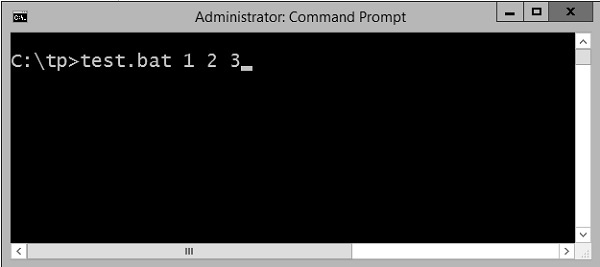
If the above batch script is stored in a file called test.bat and we were to run the batch as

Test.bat 1 2 3

Following is a screenshot of how this would look in the command prompt when the batch file is executed.

Command Line Arguments

The above command produces the following output.

1 
2 
3

If we were to run the batch as

Example 1 2 3 4

The output would still remain the same as above. However, the fourth parameter would be ignored.


Set Command

The other way in which variables can be initialized is via the ‘set’ command. Following is the syntax of the set command.

Syntax

set /A variable-name=value

where,

  • variable-name is the name of the variable you want to set.

  • value is the value which needs to be set against the variable.

  • /A – This switch is used if the value needs to be numeric in nature.

The following example shows a simple way the set command can be used.

Example

@echo off 
set message=Hello World 
echo %message%
  • In the above code snippet, a variable called message is defined and set with the value of "Hello World".

  • To display the value of the variable, note that the variable needs to be enclosed in the % sign.

Output

The above command produces the following output.

Hello World

Working with Numeric Values

In batch script, it is also possible to define a variable to hold a numeric value. This can be done by using the /A switch.

The following code shows a simple way in which numeric values can be set with the /A switch.

@echo off 
SET /A a = 5 
SET /A b = 10 
SET /A c = %a% + %b% 
echo %c%
  • We are first setting the value of 2 variables, a and b to 5 and 10 respectively.

  • We are adding those values and storing in the variable c.

  • Finally, we are displaying the value of the variable c.

The output of the above program would be 15.

All of the arithmetic operators work in batch files. The following example shows arithmetic operators can be used in batch files.

@echo off 
SET /A a = 5 
SET /A b = 10 
SET /A c = %a% + %b% 
echo %c% 
SET /A c = %a% - %b% 
echo %c% 
SET /A c = %b% / %a% 
echo %c% 
SET /A c = %b% * %a% 
echo %c%

The above command produces the following output.

15 
-5 
2 
50 


Local vs Global Variables

In any programming language, there is an option to mark variables as having some sort of scope, i.e. the section of code on which they can be accessed. Normally, variable having a global scope can be accessed anywhere from a program whereas local scoped variables have a defined boundary in which they can be accessed.

DOS scripting also has a definition for locally and globally scoped variables. By default, variables are global to your entire command prompt session. Call the SETLOCAL command to make variables local to the scope of your script. After calling SETLOCAL, any variable assignments revert upon calling ENDLOCAL, calling EXIT, or when execution reaches the end of file (EOF) in your script. The following example shows the difference when local and global variables are set in the script.

Example

@echo off set globalvar = 5 SETLOCAL set var = 13145 set /A var = %var% + 5 echo %var% echo %globalvar% ENDLOCAL

Few key things to note about the above program.

  • The ‘globalvar’ is defined with a global scope and is available throughout the entire script.

  • The ‘var‘ variable is defined in a local scope because it is enclosed between a ‘SETLOCAL’ and ‘ENDLOCAL’ block. Hence, this variable will be destroyed as soon the ‘ENDLOCAL’ statement is executed.

Output

The above command produces the following output.

13150 5

You will notice that the command echo %var% will not yield anything because after the ENDLOCAL statement, the ‘var’ variable will no longer exist.

Working with Environment Variables

If you have variables that would be used across batch files, then it is always preferable to use environment variables. Once the environment variable is defined, it can be accessed via the % sign. The following example shows how to see the JAVA_HOME defined on a system. The JAVA_HOME variable is a key component that is normally used by a wide variety of applications.

@echo off echo %JAVA_HOME%

The output would show the JAVA_HOME directory which would depend from system to system. Following is an example of an output.

C:\Atlassian\Bitbucket\4.0.1\jre