2025年7月8日 星期二

Install Google Chrome Remote Desktop on Ubuntu 24.04

 Learn how to install and configure Google Chrome Remote Desktop on Ubuntu 24.04 with this comprehensive step-by-step guide. Ensure secure and efficient remote access to your Ubuntu system from anywhere. Follow our detailed instructions and troubleshooting tips to get started.

Introduction

Remote desktop applications have revolutionized how we access and control computers from distant locations. Among these applications, Google Chrome Remote Desktop stands out due to its ease of use, reliability, and cross-platform support. This guide will walk you through the process of installing Google Chrome Remote Desktop on Ubuntu 24.04. Whether you’re a beginner or a seasoned Linux user, this comprehensive tutorial will ensure you have remote access up and running in no time.


Why Use Google Chrome Remote Desktop?

Before diving into the installation process, it’s crucial to understand why Google Chrome Remote Desktop is a preferred choice for many:

  • Cross-Platform Compatibility: It works seamlessly on Windows, macOS, Linux, and Chrome OS.
  • Security: Uses a secure connection and encryption to protect your data.
  • Free to Use: Unlike many remote desktop solutions, it is completely free.
  • Ease of Use: Simple to set up and use, even for non-technical users.

Prerequisites

To begin with, ensure you have the following:

  1. Google Chrome Browser: Google Chrome Remote Desktop requires the Chrome browser.
  2. Google Account: You’ll need a Google account to use this service.
  3. Terminal Access: Basic knowledge of using the terminal is necessary.

Google Chrome Remote Desktop on Ubuntu 24.04: Step-by-Step Guide

First things first, update your Ubuntu machine:

sudo apt update -y && sudo apt upgrade -y

Step 1: Install Google Chrome

Next, you’ll need to install the Google Chrome browser on your Ubuntu 24.04 system. Open your terminal and follow these commands:

wget https://dl.google.com/linux/direct/google-chrome-stable_current_amd64.deb
wget https://dl.google.com/linux/direct/chrome-remote-desktop_current_amd64.deb
sudo dpkg -i google-chrome-stable_current_amd64.deb
sudo apt-get install -f

The above commands will download and install the latest version of Google Chrome. The -f option in the last command fixes any dependency issues.
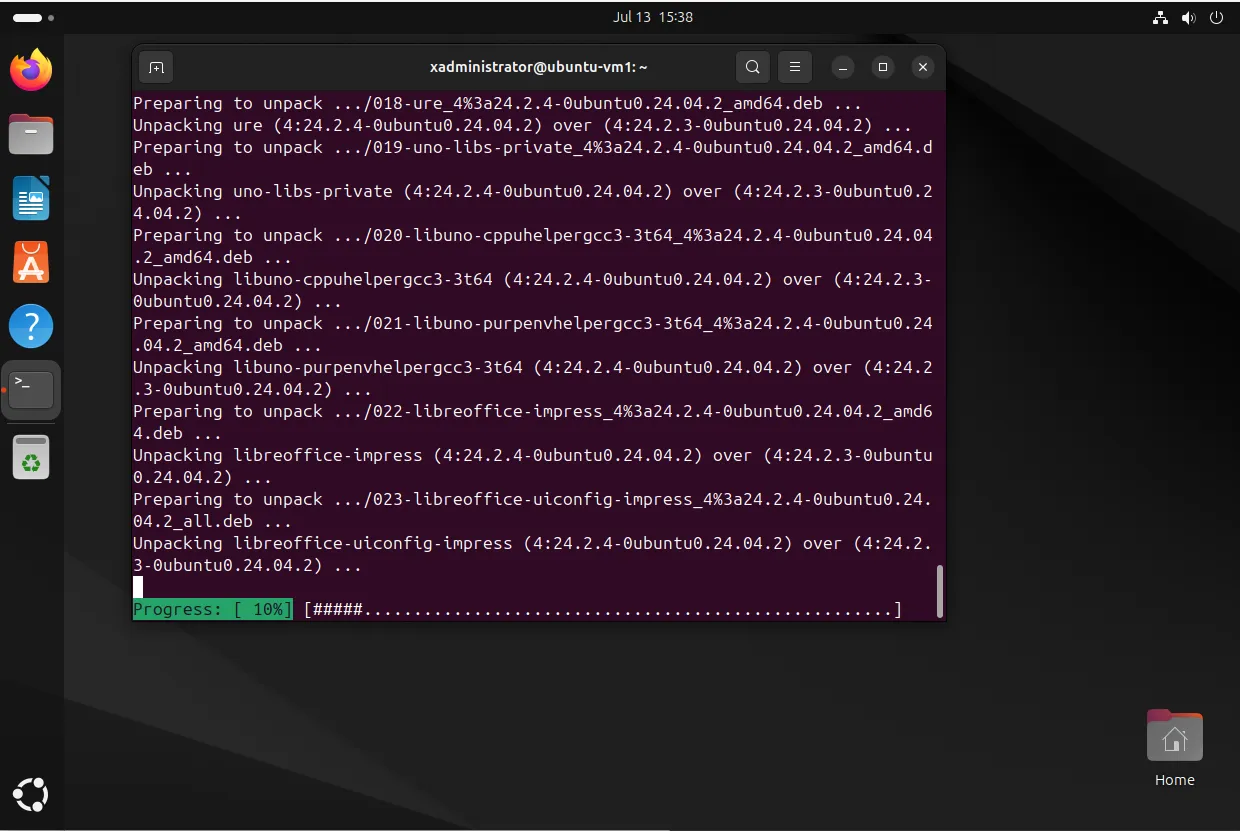
Chrome Remote Desktop on Ubuntu 24.04

Photo by admingeek from Infotechys

Step 2: Install Google Chrome Remote Desktop

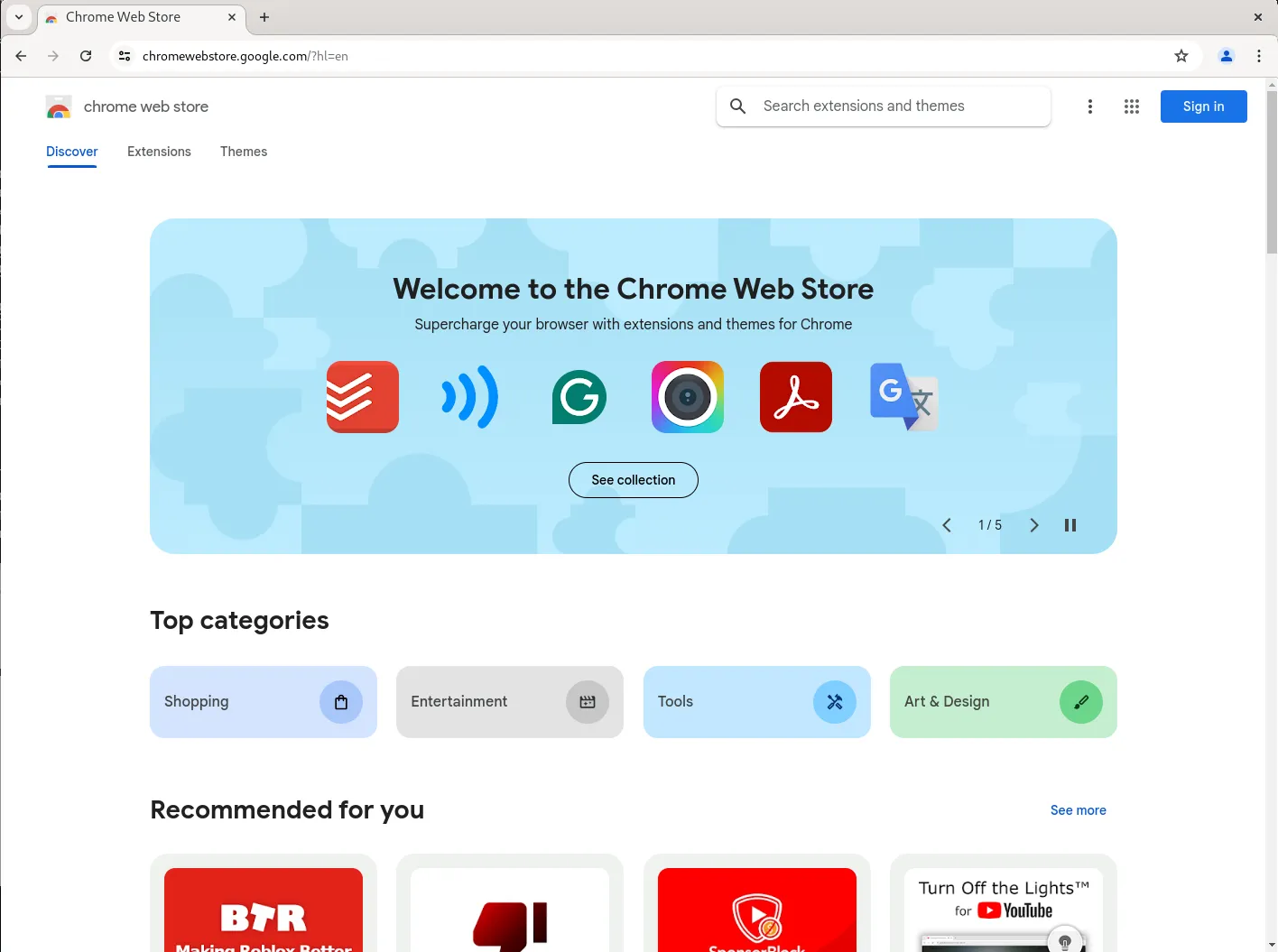
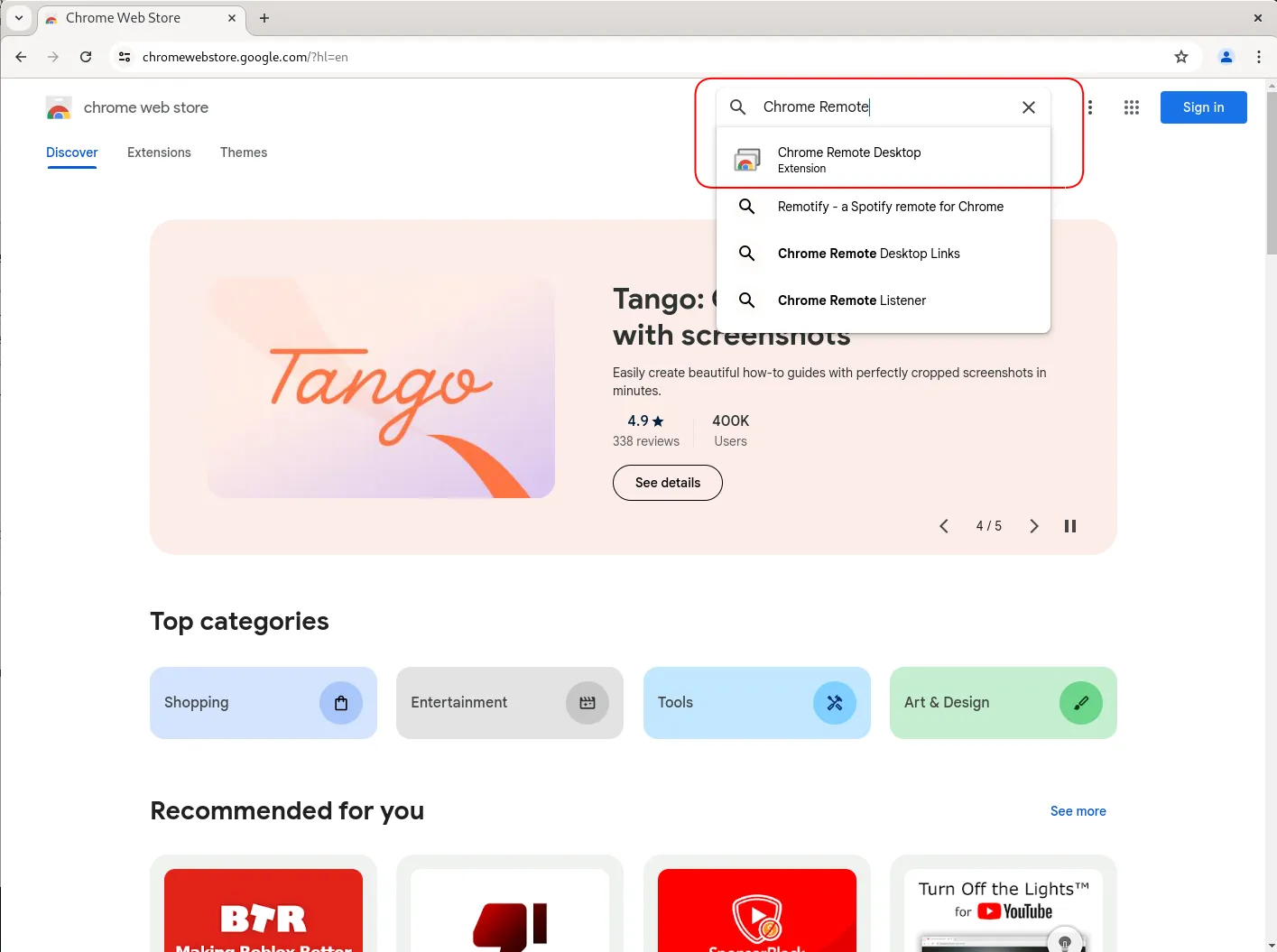
Next, you need to add the Chrome Remote Desktop extension to your browser. Open Google Chrome and visit the Chrome Web Store. Search for “Chrome Remote Desktop” and add the extension to your browser.

Alternatively, you can use the following link to directly add the extension: Chrome Remote Desktop Extension.
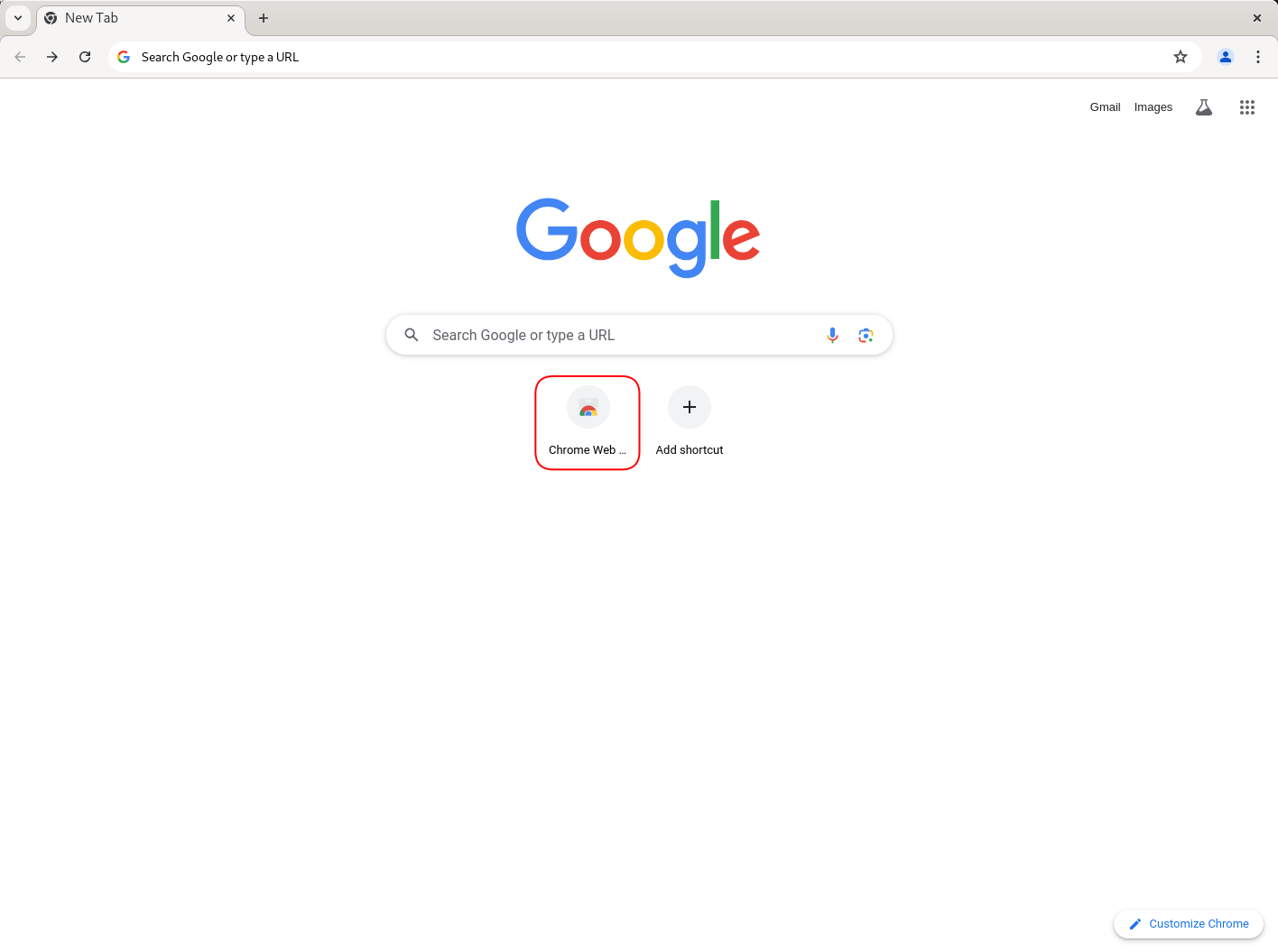
Chrome Remote Desktop on Ubuntu 24.04
Click Chrome Web Store Icon
Chrome Remote Desktop on Ubuntu 24.04
Google Chrome Web Store Page
Chrome Remote Desktop on Ubuntu 24.04
Select Chrome Remote Desktop
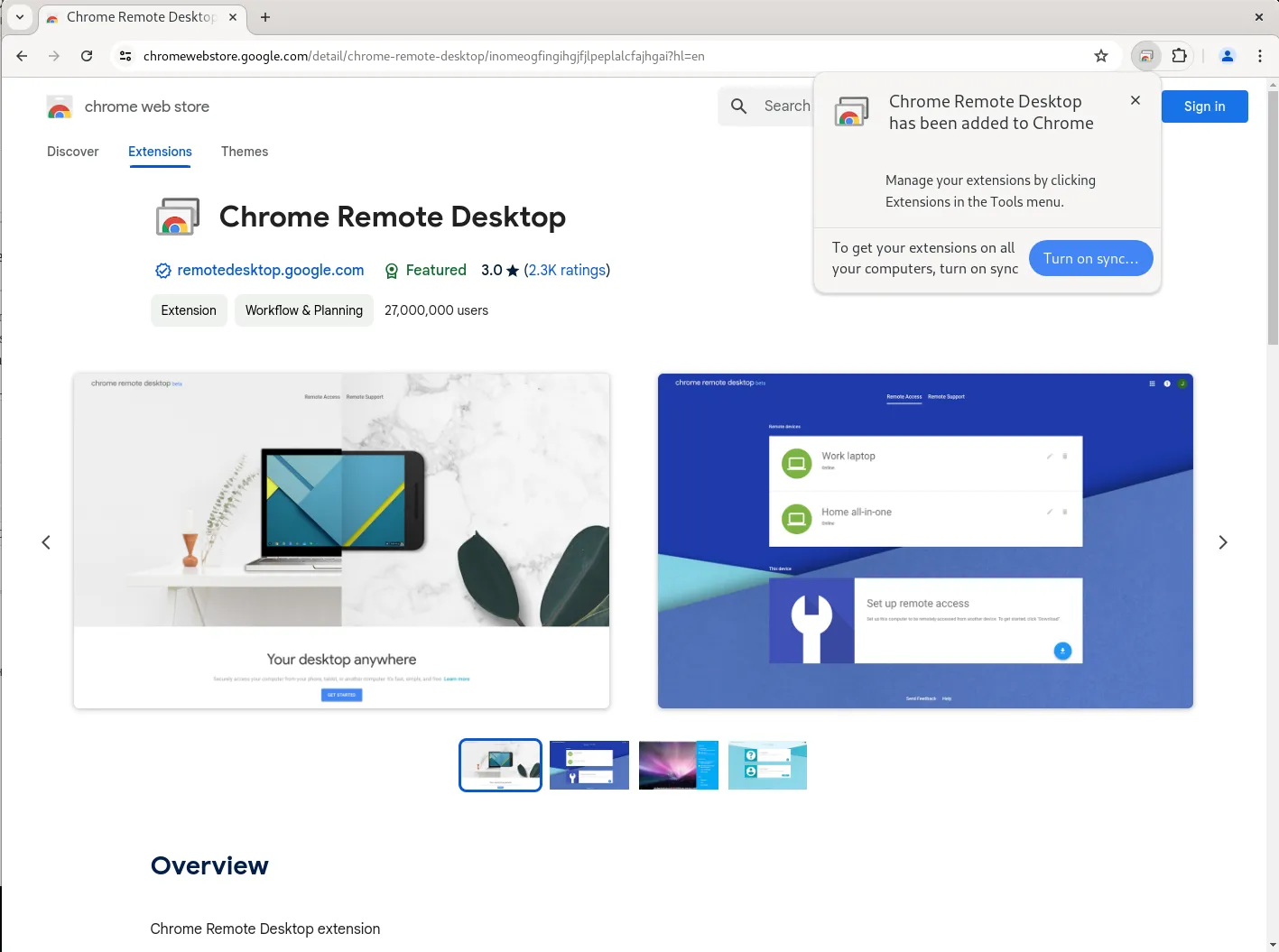
Google Chrome Remote Desktop Extension Installed
Chrome Remote Desktop Extension Installed

Photo by admingeek from Infotechys

Step 3: Set Up Remote Desktop on Google Chrome

After installing the extension, follow these steps to set up remote access:

  • Open a new tab in Google Chrome and go to remotedesktop.google.com/access.
  • Click this Download link to download the Debian package for Chrome Remote Desktop.
  • Open your terminal and navigate to the download location. Then, install the package using:
sudo dpkg -i chrome-remote-desktop_current_amd64.deb

Step 4: Enable Remote Desktop Access

To enable remote desktop access, you may need to install and configure a desktop environment if you’re using a server version of Ubuntu without a GUI. Here’s how you can install the Xfce desktop environment:

sudo apt-get install xfce4 xfce4-goodies
sudo apt-get install -f
  • After installation, set Xfce as the default desktop environment for Chrome Remote Desktop:
sudo vim /etc/chrome-remote-desktop-session
  • Replace the content with (then, save and close the file):
exec /usr/sbin/lightdm-session 'xfce4-session'
  • Now reboot your machine:
sudo systemctl reboot

Step 5: Configure Remote Desktop

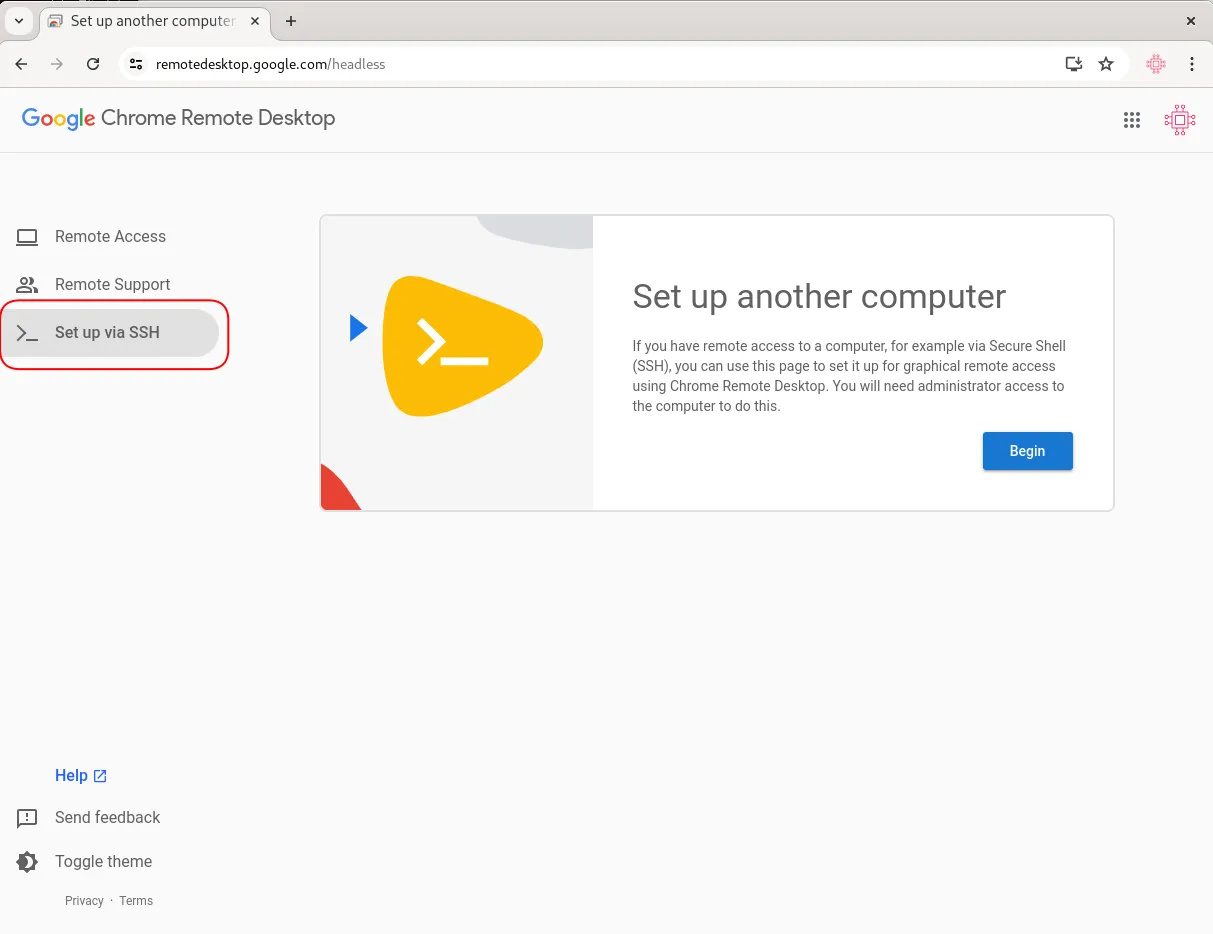
To configure Chrome Remote Desktop, follow these steps (from another Google Chrome Browser on another machine):

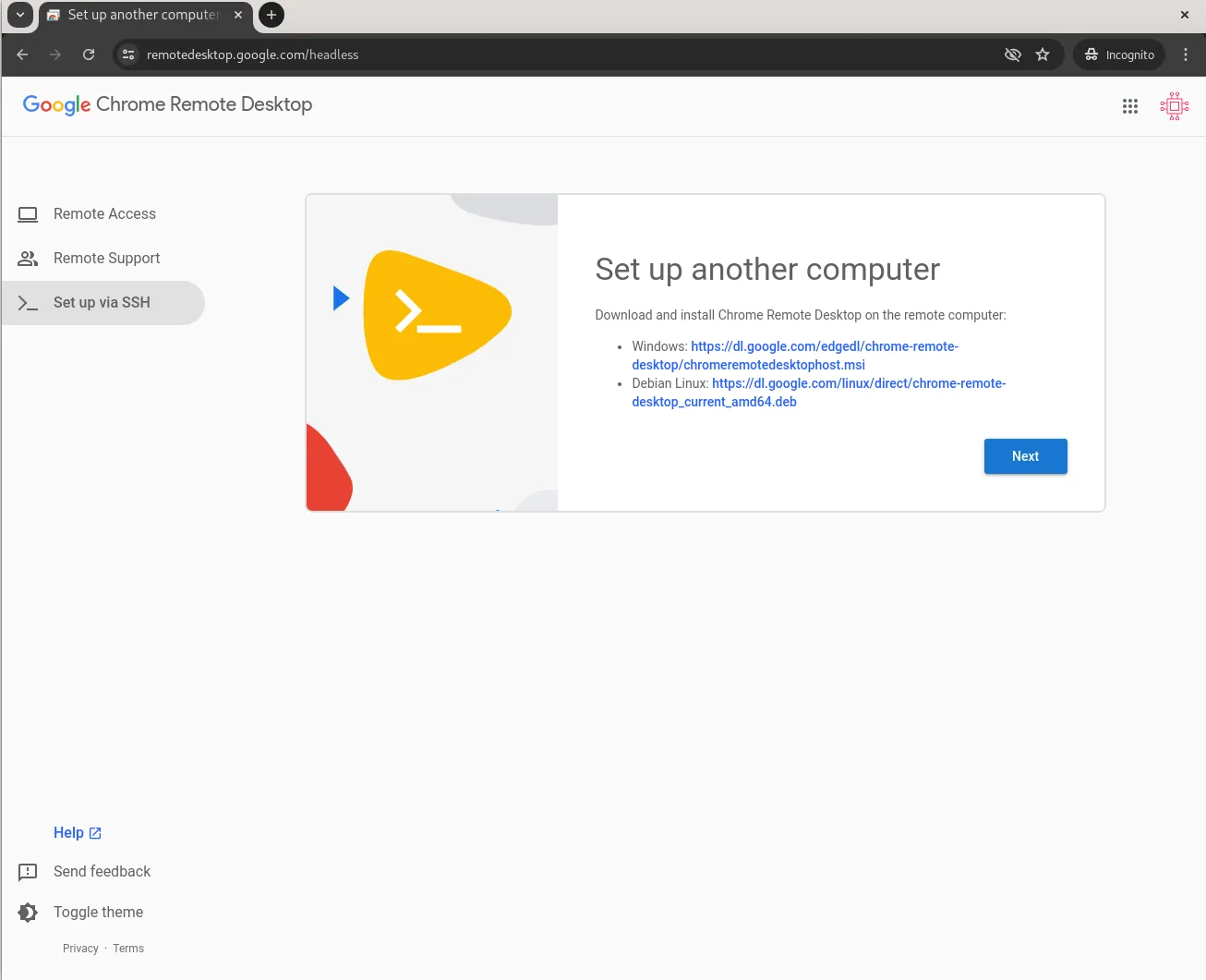
Setup another computer screen

Photo by admingeek from Infotechys

  • Click the Begin button to continue.
Remote Desktop Computer Setup Process: Part 2

Photo by admingeek from Infotechys

  • Now, click the Next button to continue.
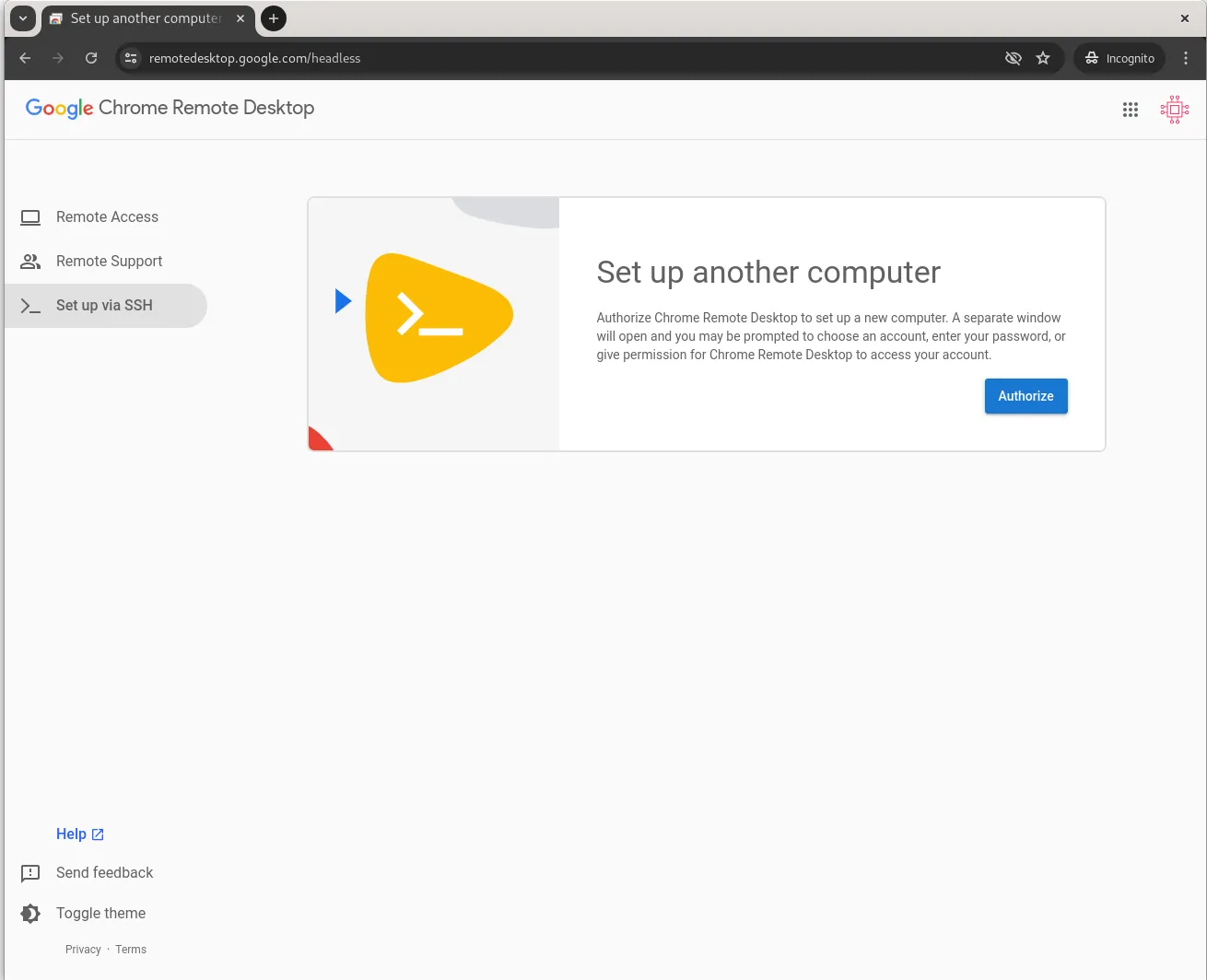
Remote Desktop Computer Setup Process: Part 3

Photo by admingeek from Infotechys

  • Then, click the Authorize button to continue.
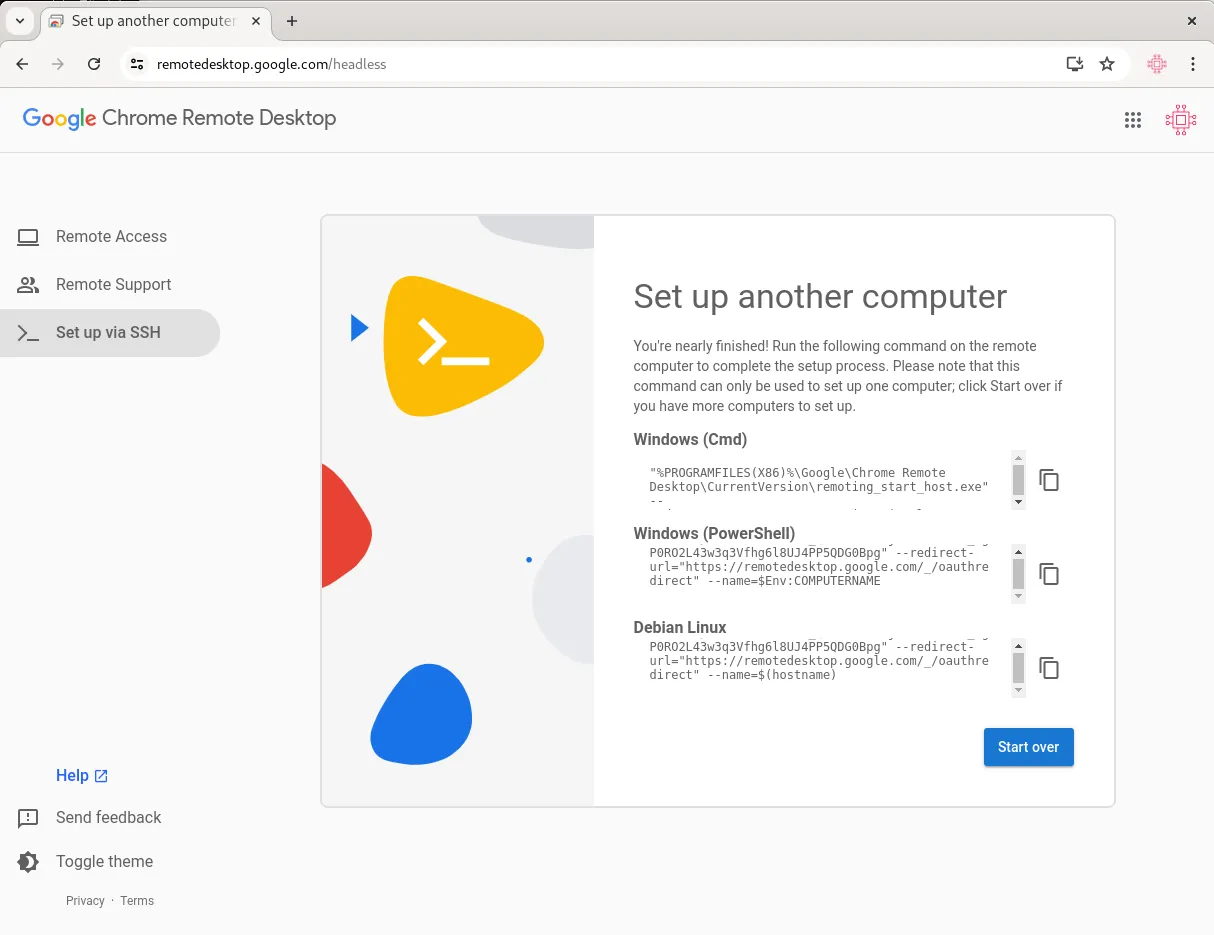
Remote Desktop Computer Setup Process: Part 4

Photo by admingeek from Infotechys

  • Copy the text under the Debian Linux textbox and paste it to the terminal on your Ubuntu 24.04 machine.

Remote Desktop Computer Setup Process: Part 5

Photo by admingeek from Infotechys

  • Press the Enter key to continue. You’ll be prompted to enter a six-digit PIN. You will need this later to remote to your Ubuntu machine after the installation completes.

Using Google Chrome Remote Desktop

Once the setup is complete, you can access your Ubuntu 24.04 system from any device with the Chrome browser and Chrome Remote Desktop extension installed. Here’s how you can connect:

Open Chrome and navigate to remotedesktop.google.com/access
Remote Desktop Computer Setup Process: Part 6

Photo by admingeek from Infotechys

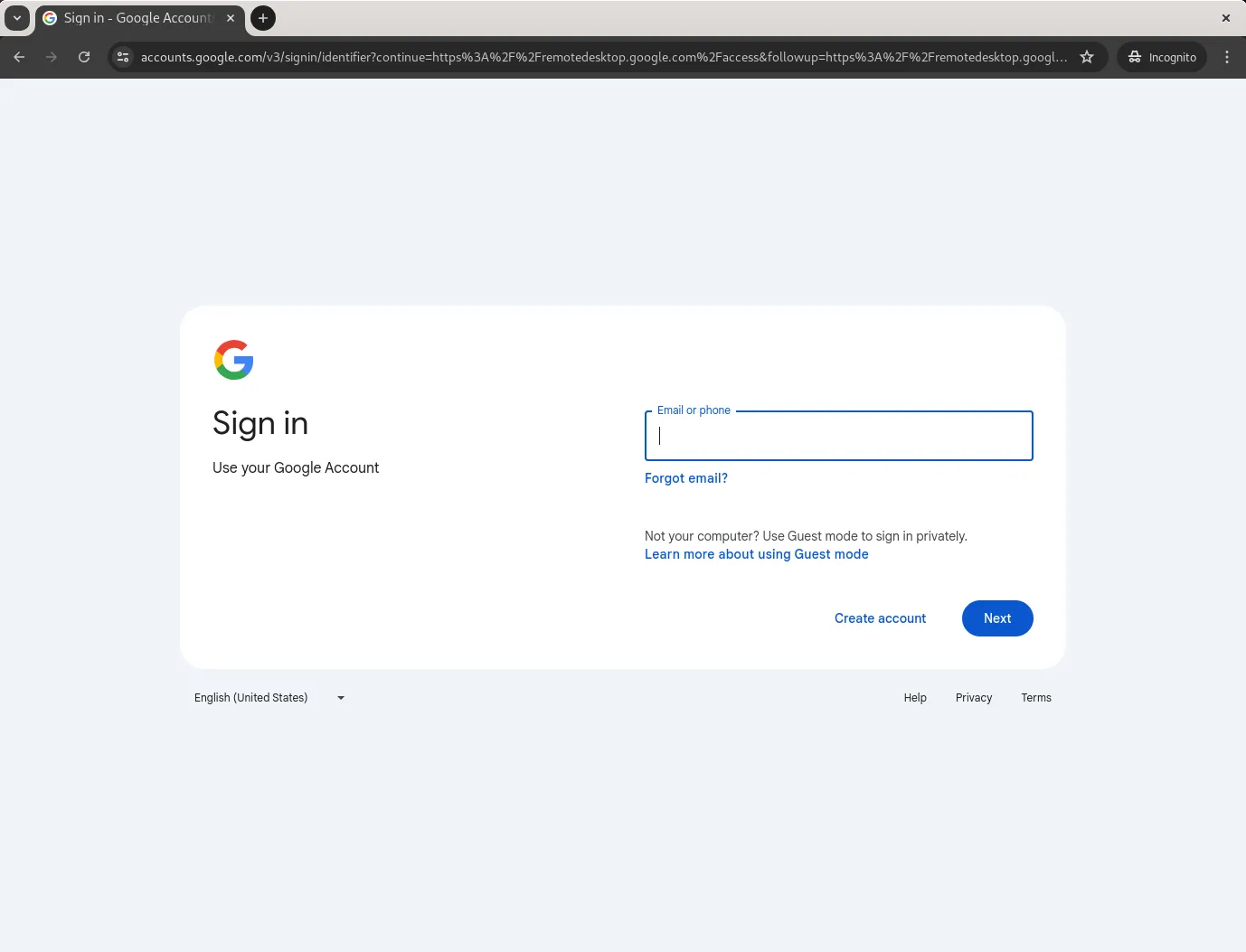
Sign in with the same Google account used for setting up remote desktop.
Remote Desktop Computer Setup Process: Part 7

Photo by admingeek from Infotechys

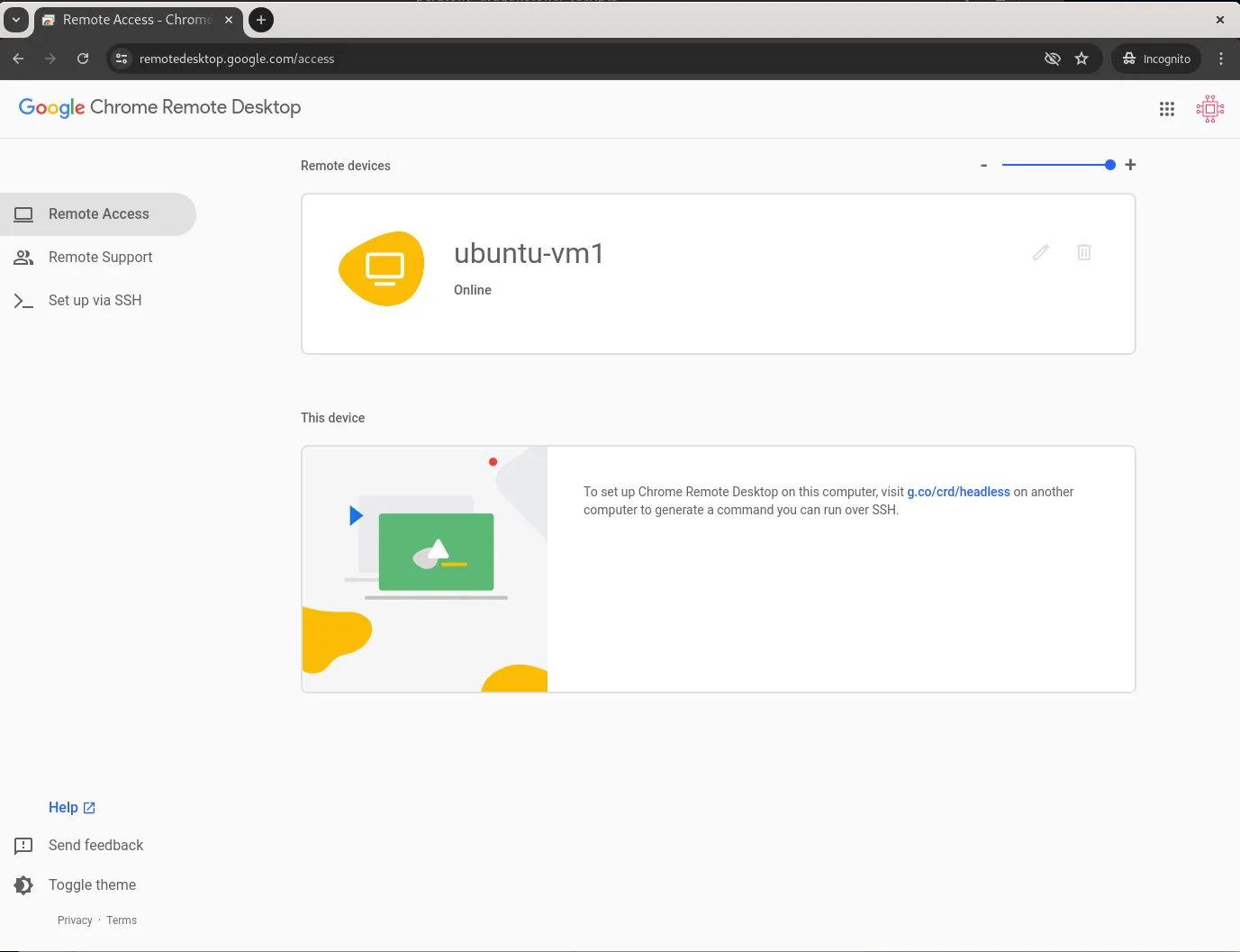
You will see the computer name of your Ubuntu machine you set up earlier. Click on it.
Remote Desktop Computer Setup Process: Part 8

Photo by admingeek from Infotechys

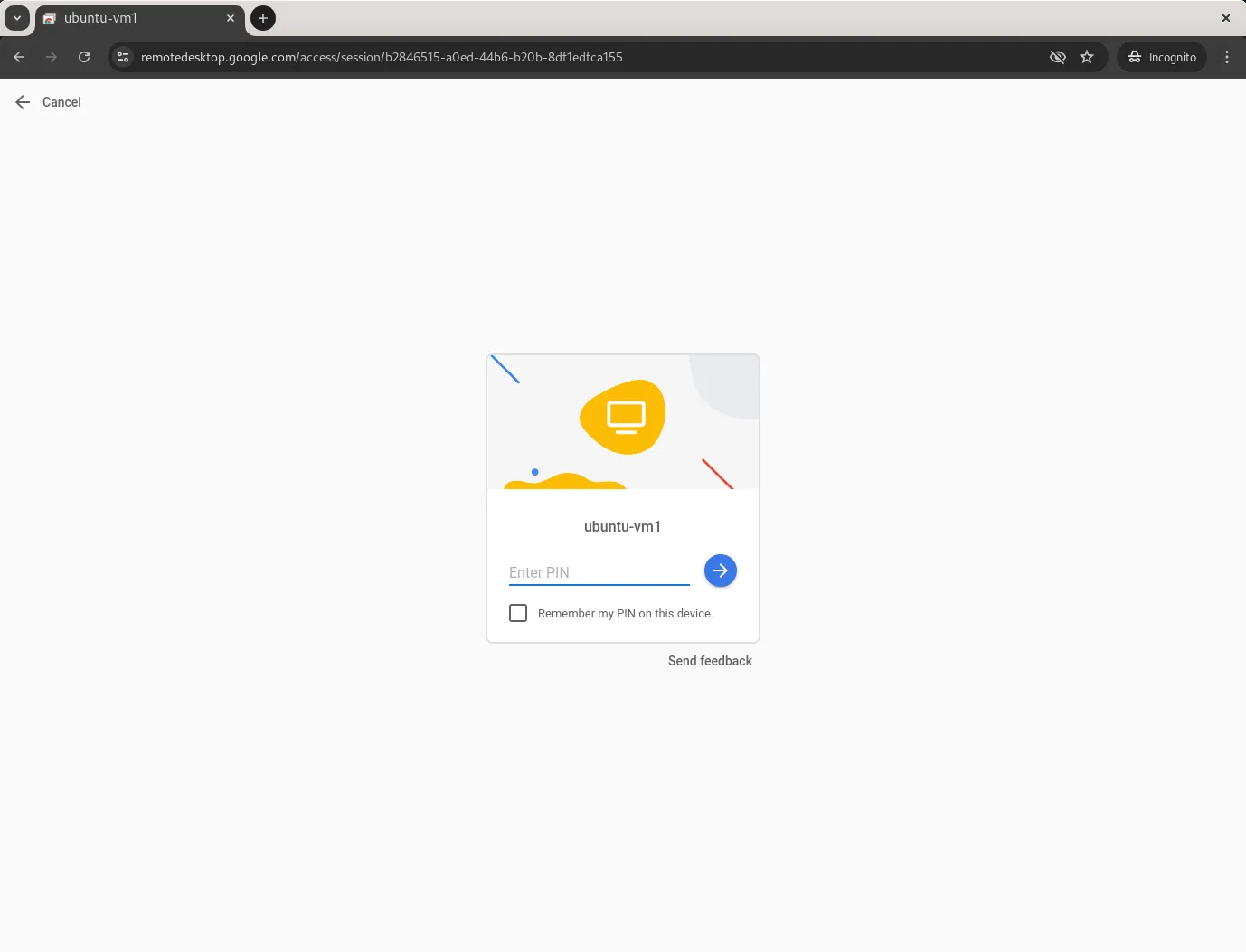
Enter the PIN you created to start the remote session.

And, you’re done! You’ve now gained remote desktop access to your Ubuntu 24.04 machine.
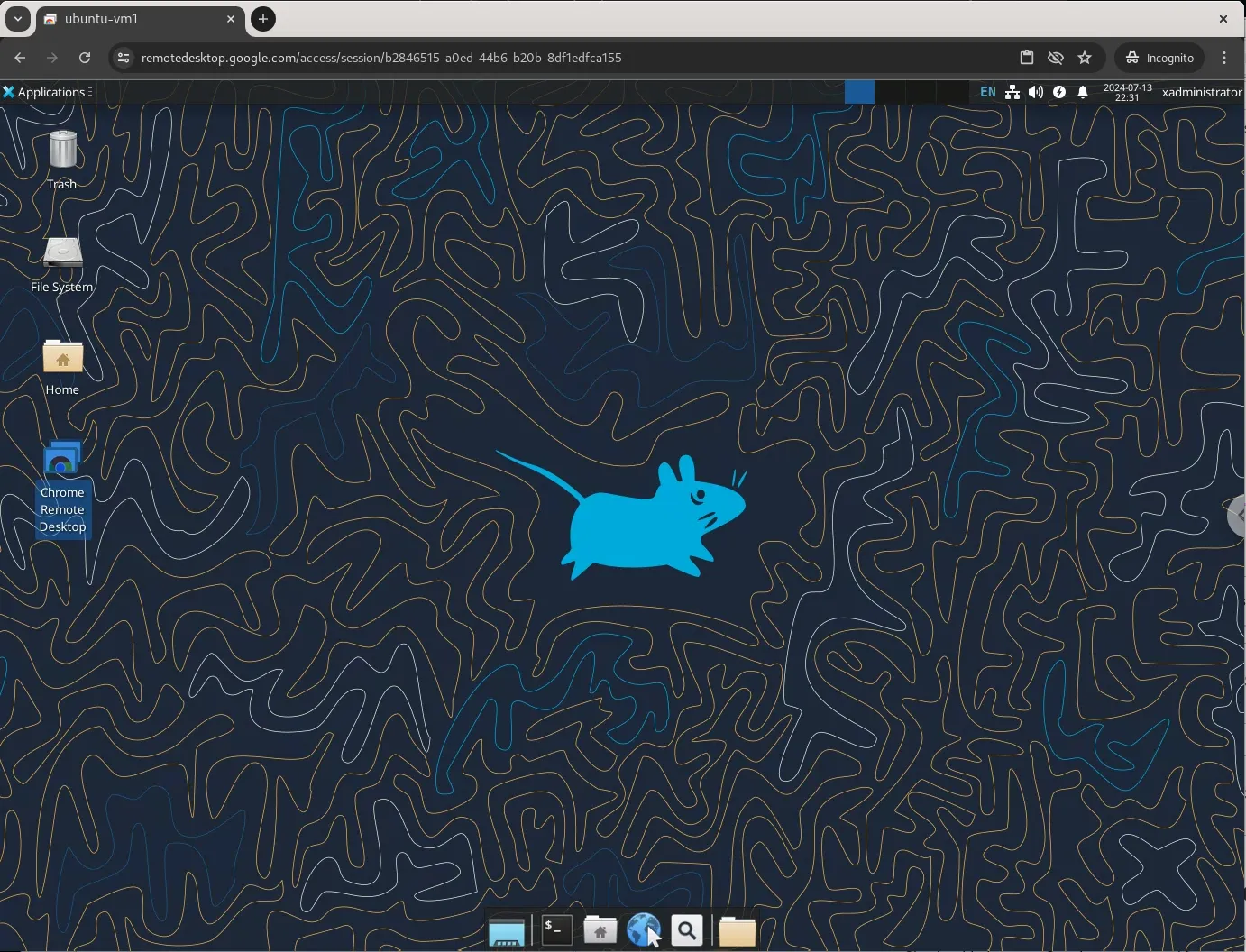
Remote Desktop Computer Setup Process: Part 9

Photo by admingeek from Infotechys

Troubleshooting Common Issues

Even with the best instructions, issues can arise. Here are some common problems and solutions:

Problem: Unable to Start the Chrome Remote Desktop Service

Solution: Check the status of the service with:

sudo service chrome-remote-desktop start

If the service isn’t active, try restarting it:

sudo systemctl restart chrome-remote-desktop

Problem: Black Screen After Connecting

Solution: This issue often occurs due to a missing or misconfigured desktop environment. Ensure that Xfce is installed correctly and set as the default session in the /etc/chrome-remote-desktop-session file.

Problem: Connection Timeout

Solution: Ensure that your internet connection is stable. You may also need to check your firewall settings to ensure that Chrome Remote Desktop is allowed.


Advantages of Using Google Chrome Remote Desktop

Security

One of the primary concerns with remote desktop applications is security. Chrome Remote Desktop uses a secure SSL connection and requires a PIN to access your system, ensuring that your data remains protected.

Performance

Chrome Remote Desktop offers smooth performance with minimal lag, even over slower internet connections. This makes it an ideal choice for accessing your desktop applications from anywhere.


Conclusion

Google Chrome Remote Desktop is an excellent tool for anyone needing remote access to their Ubuntu 24.04 system. By following this step-by-step guide, you can easily set up and configure remote desktop access, ensuring you have control over your system from anywhere. With its robust security features and seamless performance, it’s a reliable choice for both personal and professional use.

Did you find this article useful? Your feedback is invaluable to us! Please feel free to share your thoughts in the comments section below.

資料來源:https://infotechys.com/chrome-remote-desktop-on-ubuntu-24-04/

2025年7月4日 星期五

Using GNU awk in windows to get the files size , take times, copy write speed

GNU awk 

https://gnuwin32.sourceforge.net/packages/gawk.htm


透過awk取得 robocopy 檔案大小、操作時間、測試速度

Using awk in windows, get the files size , take times, copy write speed


以下為robocopy_getSpeed.bat

@echo off

setlocal enabledelayedexpansion


:: 檢查是否有傳入速度限制參數

if "%~1"=="" (

    echo 請傳入速度限制(MB/s)作為參數,例如:robocopy_getSpeed.bat 10

    exit /b 99

)


set "limit=%~1"

if "%~2"=="" (

set "logfile=robocopy_log.txt"

) else (

set "logfile=%~2"

)


if not exist "!logfile!" (

    echo [%DATE% %TIME%] !logfile! 不存在

exit /b 3

)


:: 取得 Bytes(MB)

for /f %%A in ('findstr "Bytes[^/]" %logfile% ^| awk "{ print $3 }"') do (

    set "bytes=%%A"

)


:: 取得 Time(秒)支援 HH:MM:SS 或 MM:SS

for /f %%A in ('findstr "Times" %logfile% ^| awk "{ n=split($3,t,\":\"); if (n==3) print t[1]*3600 + t[2]*60 + t[3]; else if (n==2) print t[1]*60 + t[2]; else print 0 }"') do (

    set "seconds=%%A"

)


if "!bytes!"=="" (

exit /b 2

)

if "!seconds!"=="" (

exit /b 2

)


:: 使用 PowerShell 計算速度(MB/s)

for /f %%S in ('powershell -command "[math]::Round(%bytes% / %seconds%, 2)"') do (

    set "speed=%%S"

)


echo Bytes: %bytes% MB

echo Time: %seconds% 秒

echo 速度: %speed% MB/s

echo 限速: %limit% MB/s


:: 比較速度與限制

powershell -command "if (%speed% -lt %limit%) { exit 2 } else { exit 1 }"


以下為 偵測磁碟並透過 robocopy 複製檔案 disk_test_copy.bat

@echo off

setlocal EnableDelayedExpansion


:: 設定來源資料夾、記錄檔案和日誌檔案

set "SOURCE_DIR=F:\NKG\__ProjectBackup\2025\RPA\AutoDoIt\bin\Debug\app\Script\test"

set "DRIVE_FILE=drive.txt"

set "LOG_FILE=copy_log.txt"

set "LIMIT_SPEED=10"

set "COUNT_FILE=count.txt"


:: 初始化日誌

echo [%DATE% %TIME%] 腳本開始 >> "%LOG_FILE%"


:: 檢查來源資料夾是否存在

if not exist "%SOURCE_DIR%\" (

    echo 錯誤:來源資料夾不存在!

    echo [%DATE% %TIME%] 錯誤:來源資料夾不存在 >> "%LOG_FILE%"

    pause

    exit /b 1

)


:: 檢查是否已有磁碟機記錄檔案

if exist "%DRIVE_FILE%" (

    set /p NEW_DRIVE=<%DRIVE_FILE%

    if exist "!NEW_DRIVE!:\" (

        echo 讀取磁碟機:!NEW_DRIVE!

        echo [%DATE% %TIME%] 讀取磁碟機:!NEW_DRIVE! >> "%LOG_FILE%"

        goto :process

    ) else (

        echo 錯誤:磁碟機 !NEW_DRIVE! 不存在,重新檢測...

        echo [%DATE% %TIME%] 錯誤:磁碟機 !NEW_DRIVE! 不存在 >> "%LOG_FILE%"

        del "%DRIVE_FILE%"

    )

)


:: 儲存初始磁碟機列表

set "PREV_DRIVES="

for %%D in (D E F G H I J K L M N O P Q R S T U V W X Y Z) do (

    if exist %%D:\ (

        set "PREV_DRIVES=!PREV_DRIVES! %%D"

    )

)


:: 主迴圈:監控新磁碟插入

echo 監控新磁碟...

echo [%DATE% %TIME%] 監控新磁碟 >> "%LOG_FILE%"

:loop

set "CURRENT_DRIVES="

for %%D in (D E F G H I J K L M N O P Q R S T U V W X Y Z) do (

    if exist %%D:\ (

        set "CURRENT_DRIVES=!CURRENT_DRIVES! %%D"

    )

)

set "NEW_DRIVE="

for %%D in (%CURRENT_DRIVES%) do (

    echo %PREV_DRIVES% | find /i "%%D" >nul

    if !errorlevel! neq 0 (

        set "NEW_DRIVE=%%D"

        goto :found

    )

)

set "PREV_DRIVES=%CURRENT_DRIVES%"

timeout /t 2 /nobreak >nul

goto loop


:found

echo 檢測到新磁碟:!NEW_DRIVE!

echo [%DATE% %TIME%] 檢測到新磁碟:!NEW_DRIVE! >> "%LOG_FILE%"

echo !NEW_DRIVE!>%DRIVE_FILE%

echo 儲存磁碟機到 drive.txt

echo [%DATE% %TIME%] 儲存磁碟機到 drive.txt >> "%LOG_FILE%"


:process

set "TARGET_DIR=!NEW_DRIVE!:\Backup\test"

echo [%DATE% %TIME%] 檢查磁碟 !NEW_DRIVE! 是否可寫 >> "%LOG_FILE%"

echo test>%TEMP%\test.txt

copy "%TEMP%\test.txt" "!NEW_DRIVE!:\" >nul 2>&1

if !errorlevel! neq 0 (

    echo 錯誤:無法寫入磁碟 !NEW_DRIVE!

    echo [%DATE% %TIME%] 錯誤:無法寫入磁碟 !NEW_DRIVE! >> "%LOG_FILE%"

    pause

    exit /b 1

)

::del "!NEW_DRIVE!:\test.txt" >nul 2>&1

echo Will del "!TARGET_DIR!"

pause

del /f /s /q "!TARGET_DIR!" >nul 2>&1


if not exist "!TARGET_DIR!\" (

    mkdir "!TARGET_DIR!"

    echo [%DATE% %TIME%] 創建目標資料夾 >> "%LOG_FILE%"

)


echo 正在複製資料...

echo [%DATE% %TIME%] 開始複製 >> "%LOG_FILE%"

::set "TEMP_COPY_LOG=%TEMP%\robocopy_copy_%RANDOM%.txt"

set "TEMP_COPY_LOG=robocopy_log.txt"

robocopy "%SOURCE_DIR%" "!TARGET_DIR!" /MIR /COPY:DAT /IS /R:3 /W:5 /LOG:"!TEMP_COPY_LOG!" /NP

if !errorlevel! geq 8 (

    echo 錯誤:複製失敗!錯誤碼:!errorlevel!

    echo [%DATE% %TIME%] 錯誤:複製失敗,錯誤碼:!errorlevel! >> "%LOG_FILE%"

    type "!TEMP_COPY_LOG!" >> "%LOG_FILE%"

    del "!TEMP_COPY_LOG!" >nul 2>&1

    pause

    exit /b 1

)

echo [%DATE% %TIME%] 複製完成 >> "%LOG_FILE%"


::copy "!TEMP_COPY_LOG!" "robocopy_log.txt"

type "!TEMP_COPY_LOG!" >> "%LOG_FILE%"


echo 正在比對檔案...

echo [%DATE% %TIME%] 開始比對 >> "%LOG_FILE%"

set "TEMP_FILE=%TEMP%\robocopy_diff_%RANDOM%.txt"

robocopy "%SOURCE_DIR%" "!TARGET_DIR!" /MIR /COPY:DAT /L /XJ /R:3 /W:5 /LOG:"!TEMP_FILE!" /NP >nul

if !errorlevel! geq 8 (

    echo 錯誤:比對失敗!錯誤碼:!errorlevel!

    echo [%DATE% %TIME%] 錯誤:比對失敗,錯誤碼:!errorlevel! >> "%LOG_FILE%"

    if exist "!TEMP_FILE!" (

        echo [%DATE% %TIME%] robocopy 比對輸出: >> "%LOG_FILE%"

        type "!TEMP_FILE!" >> "%LOG_FILE%"

    )

    del "!TEMP_FILE!" >nul 2>&1

    pause

    exit /b 1

)

set "DIFF_COUNT=0"

if exist "!TEMP_FILE!" (

    for /f "tokens=*" %%F in ('findstr /b /c:"    New File " /c:"    Extra " "!TEMP_FILE!"') do (

        echo [%DATE% %TIME%] 差異檔案:%%F >> "%LOG_FILE%"

        set /a DIFF_COUNT+=1

    )

)

del "!TEMP_FILE!" >nul 2>&1


if !DIFF_COUNT! neq 0 (

    echo 錯誤:檔案清單不一致!差異數:!DIFF_COUNT!

    echo [%DATE% %TIME%] 錯誤:檔案清單不一致,差異數:!DIFF_COUNT! >> "%LOG_FILE%"

    pause

    exit /b 1

)


set "CONTENT_DIFF=0"

for %%F in ("%SOURCE_DIR%\*.*") do (

    fc /b "%%F" "!TARGET_DIR!\%%~nxF" >nul 2>&1

    if !errorlevel! neq 0 (

        echo 錯誤:檔案內容不同:%%~nxF

        echo [%DATE% %TIME%] 錯誤:檔案內容不同:%%~nxF >> "%LOG_FILE%"

        set /a CONTENT_DIFF+=1

    )

)


if !CONTENT_DIFF! neq 0 (

    echo 錯誤:有 !CONTENT_DIFF! 個檔案內容不同!

    echo [%DATE% %TIME%] 錯誤:有 !CONTENT_DIFF! 個檔案內容不同 >> "%LOG_FILE%"

    pause

    exit /b 1

)


echo 複製成功,檔案內容一致!

echo [%DATE% %TIME%] 複製成功,檔案內容一致 >> "%LOG_FILE%"


:: 處理取得速度值 >> "%LOG_FILE%"

robocopy_getSpeed.bat !LIMIT_SPEED!


del "!TEMP_COPY_LOG!" >nul 2>&1


:: 處理執行次數

set "EXEC_COUNT=0"

if exist "%COUNT_FILE%" (

    set /p EXEC_COUNT=<%COUNT_FILE%

    set /a EXEC_COUNT+=1

) else (

    set "EXEC_COUNT=1"

)

echo !EXEC_COUNT!>"%COUNT_FILE%"

echo 執行次數:!EXEC_COUNT!

echo [%DATE% %TIME%] 執行次數:!EXEC_COUNT! >> "%LOG_FILE%"


echo [%DATE% %TIME%] 腳本結束 >> "%LOG_FILE%"

exit /b 0


以下為 robocopy_log.txt

-------------------------------------------------------------------------------

   ROBOCOPY     ::     Robust File Copy for Windows                              

-------------------------------------------------------------------------------


  Started : Friday, July 4, 2025 12:57:13 PM

   Source : F:\test\

     Dest = G:\Backup\


    Files : *.*


  Options : *.* /V /TEE /S /E /DCOPY:T /COPY:DAT /R:0 /W:0 


------------------------------------------------------------------------------


                   1 F:\Script\test\

*EXTRA Dir        -1 G:\Backup\test\

          same   76.7 m sbom-tool-win-x64.exe


------------------------------------------------------------------------------


               Total    Copied   Skipped  Mismatch    FAILED    Extras

    Dirs :         1         0         1         0         0         1

   Files :         1         0         1         0         0         0

   Bytes :   76.78 m         0   76.78 m         0         0         0

   Times :   1:01:05   1:01:05                       0:00:00   0:00:00

   Ended : Friday, July 4, 2025 12:57:13 PM